Google Cloud Build (GCB) is Google's serverless platform for automating builds, tests, and artifact creation, particularly excelling in containerized workflows like Docker image builds and pushes to Container Registry or Artifact Registry. While GCB handles CI effectively, extending to complex CD across hybrid environments can involve custom steps. Jaws Deploy integrates with GCB to manage releases and deployments, leveraging API triggers for seamless handoffs—ideal for triggering Jaws releases post-build in containerized setups.
In this integration, GCB focuses on containerized builds (e.g., building and pushing Docker images), while Jaws Deploy orchestrates the CD phase via API triggers, handling multi-environment rollouts, lifecycles, and variable scoping. This enables efficient container deployments to Kubernetes, VMs, or multi-cloud targets.
This guide covers prerequisites, setup, an example workflow, and tips, with emphasis on containerized processes and API-driven triggers.
Why Integrate Google Cloud Build with Jaws Deploy?
- Containerized Focus: GCB's strength in building/pushing containers (e.g., Docker) pairs with Jaws' deployment steps for container orchestration, like running scripts to deploy images to GKE or hybrid clusters.
- API Triggers for Releases: Use GCB's post-build triggers or steps to call Jaws' REST API, automating release creation and deployment—perfect for event-driven workflows.
- Hybrid Scalability: Extend GCB's GCP-centric builds to multi-cloud deploys via Jaws, with lifecycles promoting containers across environments.
- Streamlined Automation: Reduce custom YAML in GCB; let Jaws handle CD logic, monitoring, and rollbacks.
This setup is suited for microservices or apps where GCB builds containers, and Jaws triggers releases for deployment to diverse targets.
Prerequisites
- A Jaws Deploy account (sign up at https://app.jawsdeploy.net/signup).
- A Google Cloud project with Cloud Build enabled and a repository (e.g., GitHub connected via triggers).
- A Jaws project with container-focused steps (e.g., "Run Script" for kubectl apply), environments, and a package store if using non-container artifacts.
- GCP service account with Cloud Build Editor role for API calls.
- Familiarity with cloudbuild.yaml for GCB configs.
Configure your Jaws project here, adding steps for container pulls/deploys.
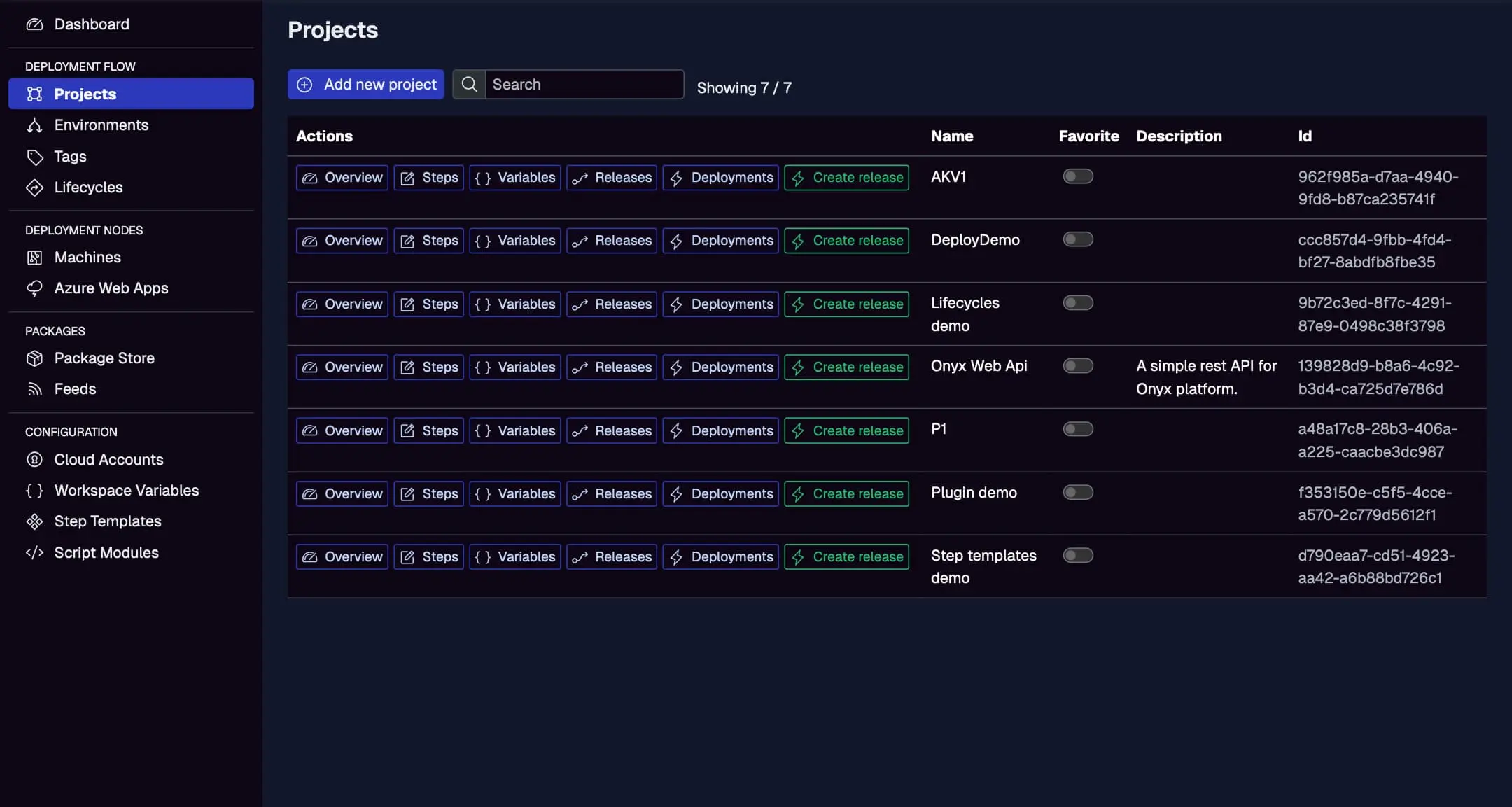
Step 1: Create a Service Account in Jaws Deploy
For secure API triggers from GCB:
- In Jaws, go to Settings > Service Accounts.
- Create an account (e.g., "GCBDeployer") with permissions for release creation and deployment on specific projects/workspaces.
- Copy the service account ID and API key.
In GCP:
- Store keys in Secret Manager (e.g., secrets "jaws-login" and "jaws-password").
- Grant your Cloud Build service account access to Secret Manager (roles/secretmanager.secretAccessor).
See the Service Accounts and Automation Guide.
Step 2: Choose Your Integration Method
- REST API: Call endpoints via curl in GCB steps for direct triggers. Great for simple container handoffs.
- PowerShell SDK: Use in GCB (with Windows machine type or pwsh installation) for wrapped commands like
Invoke-ReleaseAndDeployProject.
Emphasize REST for container workflows, as it's lightweight and integrates easily with Docker-based builds.
Step 3: Set Up Your Google Cloud Build Pipeline
Create a cloudbuild.yaml in your repo. This example builds a Docker container, pushes to Artifact Registry, then triggers a Jaws release via API for deployment.
Example cloudbuild.yaml
steps:
  # Build and push container
  - name: 'gcr.io/cloud-builders/docker'
    args: ['build', '-t', 'us-central1-docker.pkg.dev/$PROJECT_ID/my-repo/my-app:$BUILD_ID', '.']
  - name: 'gcr.io/cloud-builders/docker'
    args: ['push', 'us-central1-docker.pkg.dev/$PROJECT_ID/my-repo/my-app:$BUILD_ID']

  # Trigger Jaws release via REST API (fetch secrets and call)
  - name: 'gcr.io/cloud-builders/gcloud'
    entrypoint: 'bash'
    args:
      - '-c'
      - |
        # Fetch secrets
        JAWS_API_LOGIN=$(gcloud secrets versions access latest --secret="jaws-login")
        JAWS_API_PASSWORD=$(gcloud secrets versions access latest --secret="jaws-password")

        # Create release (pass container tag as variable or note)
        auth=$(echo -n $JAWS_API_LOGIN:$JAWS_API_PASSWORD | base64)
        curl -X POST "<https://app.jawsdeploy.net/api/release>" \\
          -H "Authorization: Basic $auth" \\
          -H "Content-Type: application/json" \\
          -d "{\\"projectId\\": \\"your-project-id\\", \\"version\\": \\"$BUILD_ID.0.0\\", \\"notes\\": \\"Container: us-central1-docker.pkg.dev/$PROJECT_ID/my-repo/my-app:$BUILD_ID\\"}"

        # Deploy release (extract releaseId from response; use jq)
        apt-get update && apt-get install -y jq
        release_response=$(curl ... )  # Repeat create call with --output -
        release_id=$(echo $release_response | jq -r '.releaseId')
        curl -X POST "<https://app.jawsdeploy.net/api/release/deploy>" \\
          -H "Authorization: Basic $auth" \\
          -H "Content-Type: application/json" \\
          -d "{\\"releaseId\\": \\"$release_id\\", \\"environments\\": [\\"Staging\\"]}"

options:
  logging: CLOUD_LOGGING_ONLY
Key Explanations
- Container Build: Builds and pushes Docker image—emphasizing GCB's container workflow strengths.
- API Trigger: Fetches secrets, creates a Jaws release (noting container tag for pull in steps), and deploys. Use Jaws steps to pull/deploy the image (e.g., via script:
docker pull $#{VAR.containerTag}). - Versioning: Uses GCB's
$BUILD_IDfor SemVer. - Triggers: Set up GCB triggers on push/tag for automated runs.
For PowerShell SDK: Use a Windows machine type (machineType: E2_HIGHCPU_8) and pwsh commands to import/call SDK.
Reference the API Reference for endpoints.
Step 4: Test and Monitor
- Push code to trigger GCB.
- View build logs in GCP console.
- In Jaws, check Deployments for container rollout progress.
Monitor GCB-triggered releases here, verifying container deploys.
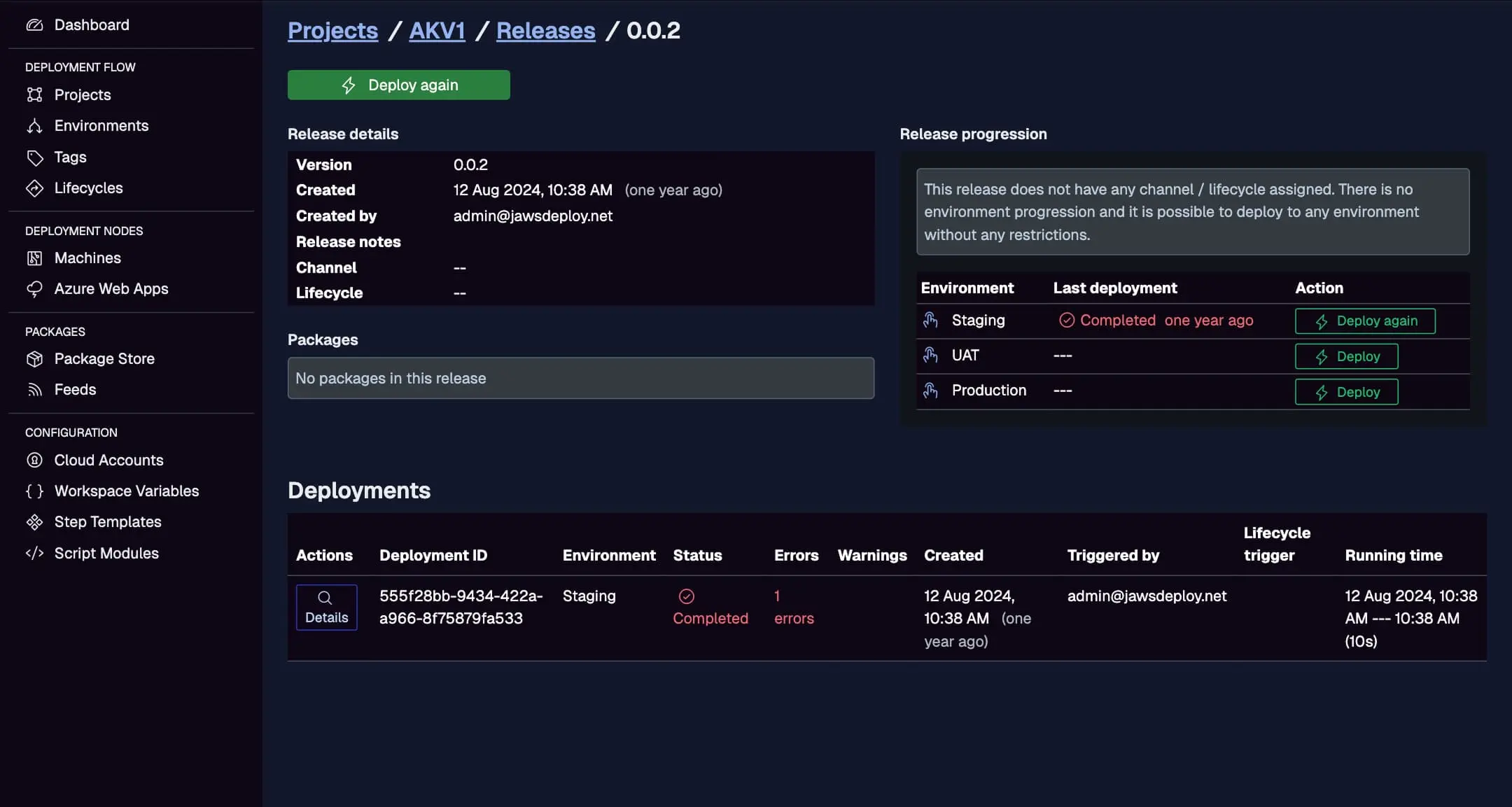
Set __debug to true in Jaws for detailed logs.
Best Practices
- Container Security: Use GCB's vulnerability scanning; pass secure tags to Jaws variables.
- API Triggers: Use webhooks in GCB for async Jaws calls if needed.
- Multi-Cloud: Scope Jaws environments to GCP/Azure; use variables for registry URLs.
- Error Handling: Add retries in scripts; notify via Pub/Sub.
- Optimization: Cache layers in GCB for faster container builds.
- Compliance: Log API calls for audits in multi-cloud setups.
Troubleshooting Common Issues
- Auth Errors: Check Secret Manager access and Base64.
- Container Push Fails: Verify registry permissions.
- API Response Parsing: Install jq reliably.
- Timeouts: Increase GCB timeouts for large containers.
- Logs: Use Jaws' UI for deployment insights; Stackdriver for GCB.
Consult GCP docs or our API Reference.
Conclusion
Integrating Google Cloud Build with Jaws Deploy leverages GCB's containerized workflows and API triggers for efficient, multi-cloud releases—perfect for hybrid environments.
For more, see the CI/CD Integration Guide. Set up your build today! New to Jaws? Start with Getting Started.