In Jaws Deploy, projects serve as the central hub for defining and managing your deployment workflows. They're designed to encapsulate the logic needed to deploy a specific application, service, or component—whether it's a web app, database schema, or background worker. This keeps things organized, reusable, and scalable, especially as your team grows or your infrastructure evolves.
Think of a project as a blueprint: It outlines the steps to execute, variables to customize behavior, and rules for progressing through environments. Unlike traditional CI tools where deployment logic is scattered in scripts, Jaws centralizes it in an intuitive UI with API support for automation. This article covers how to set up projects, build deployment logic with steps, leverage templates and modules for reuse, and handle configurations—drawing from real-world enterprise needs like migrations from tools like Bamboo or Octopus.
Understanding Projects
A project in Jaws Deploy represents a deployable unit, such as "Web API" or "Database Migrations." Each project includes:
- Deployment Steps: The sequence of actions to perform during a release.
- Variables: Dynamic values scoped to environments, machines, or tags for customization.
- Releases and Deployments: Versioned snapshots deployed to environments via lifecycles.
- Channels: Optional paths for variant deployments (e.g., feature branches).
Projects are grouped within workspaces for team isolation, and you can tag them for quick filtering. This structure is lightweight yet powerful, avoiding the bloat of heavier tools while supporting enterprise-scale operations.
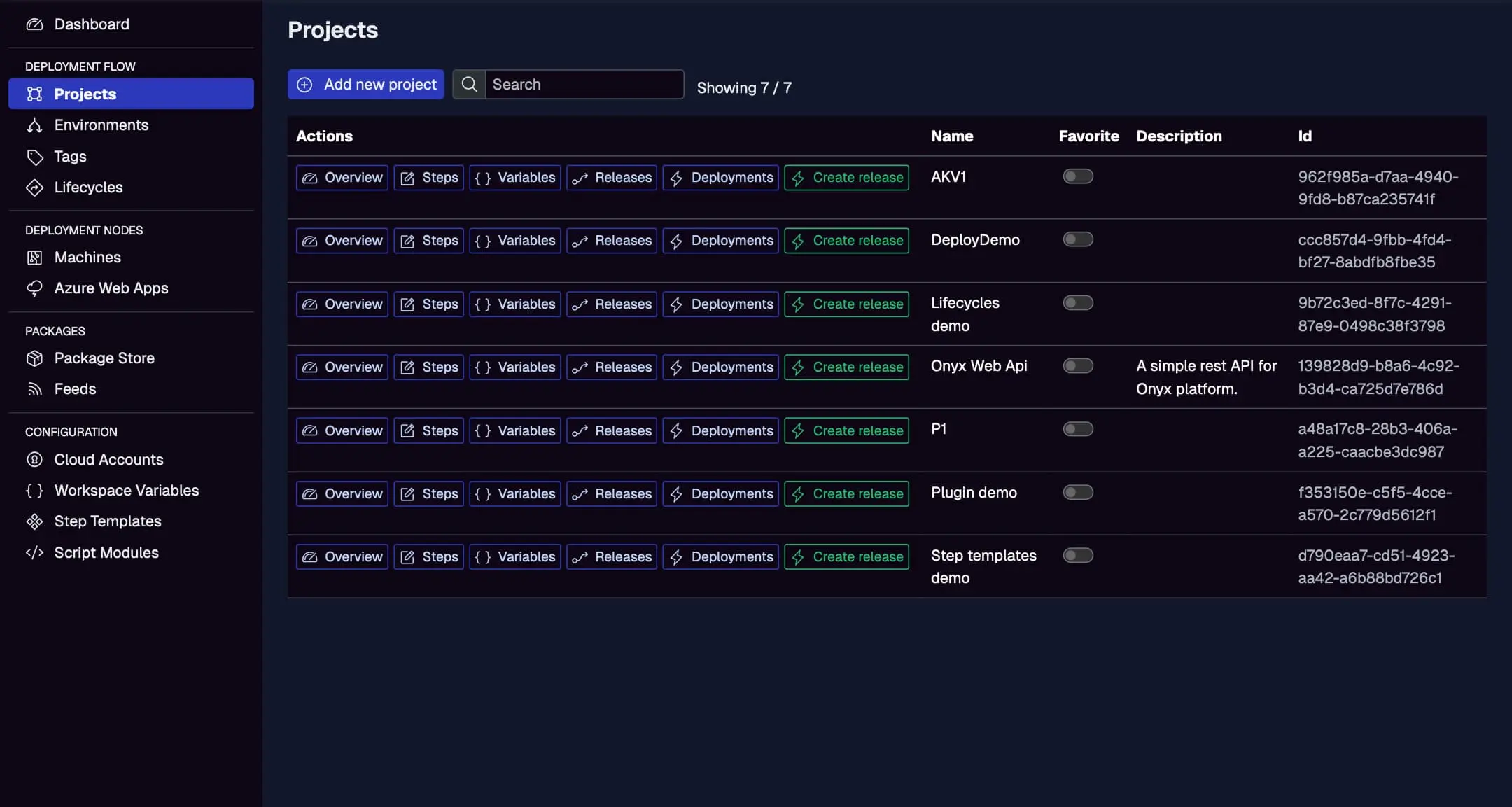
This lists all projects with IDs, descriptions, and quick actions like creating releases or viewing deployments. Use the "Add new project" button to start.
Creating and Managing Projects
Getting a project up and running is straightforward:
- Add a New Project: From the Projects page, click "Add new project." Provide a name (e.g., "Customer Portal"), description, and optional tags for categorization.
- Define Basics: Set up environments (via the Environments menu) and link them if needed. Assign lifecycles to control progression (e.g., require approvals before Production).
- Organize with Workspaces: For enterprises, use multiple workspaces to separate teams or business units—migrate by importing projects one-by-one.
- Manage Permissions: Use service accounts or RBAC to control access, ideal during migrations where legacy Bamboo users need read-only views.
During enterprise migrations, start by replicating a Bamboo plan in Jaws: Map tasks to steps, variables to scoped vars, and use the API to trigger from Bamboo for hybrid testing.
Tip: For large orgs, tag projects (e.g., "app-web", "region-eu") to filter dashboards and target deploys efficiently.
Defining Deployment Logic with Steps
The core of a project is its steps—the ordered actions that run during a deployment. Steps can be parallel or sequential, scoped to specific environments or machines, and customized with conditions.
Adding and Editing Steps
- From the project overview, go to the "Steps" tab.
- Click "Add step" and choose from built-in types like "Deploy Package" (for .zip/.tar.gz uploads), "Run Script" (PowerShell by default, with bash/Python support in 2025), or "Install Service."
- Edit steps via the UI: Set names, conditions (e.g., run only if variable
#{VAR.isProd}is true), and parallelism (e.g., deploy to 5 machines at once). - Order steps with drag-and-drop; add outputs to pass data between them (e.g., capture a generated ID).
Steps execute on targets (machines or cloud apps), pulling packages from the store or external feeds. For containerized workflows, use "Run Script" to pull/deploy Docker images.
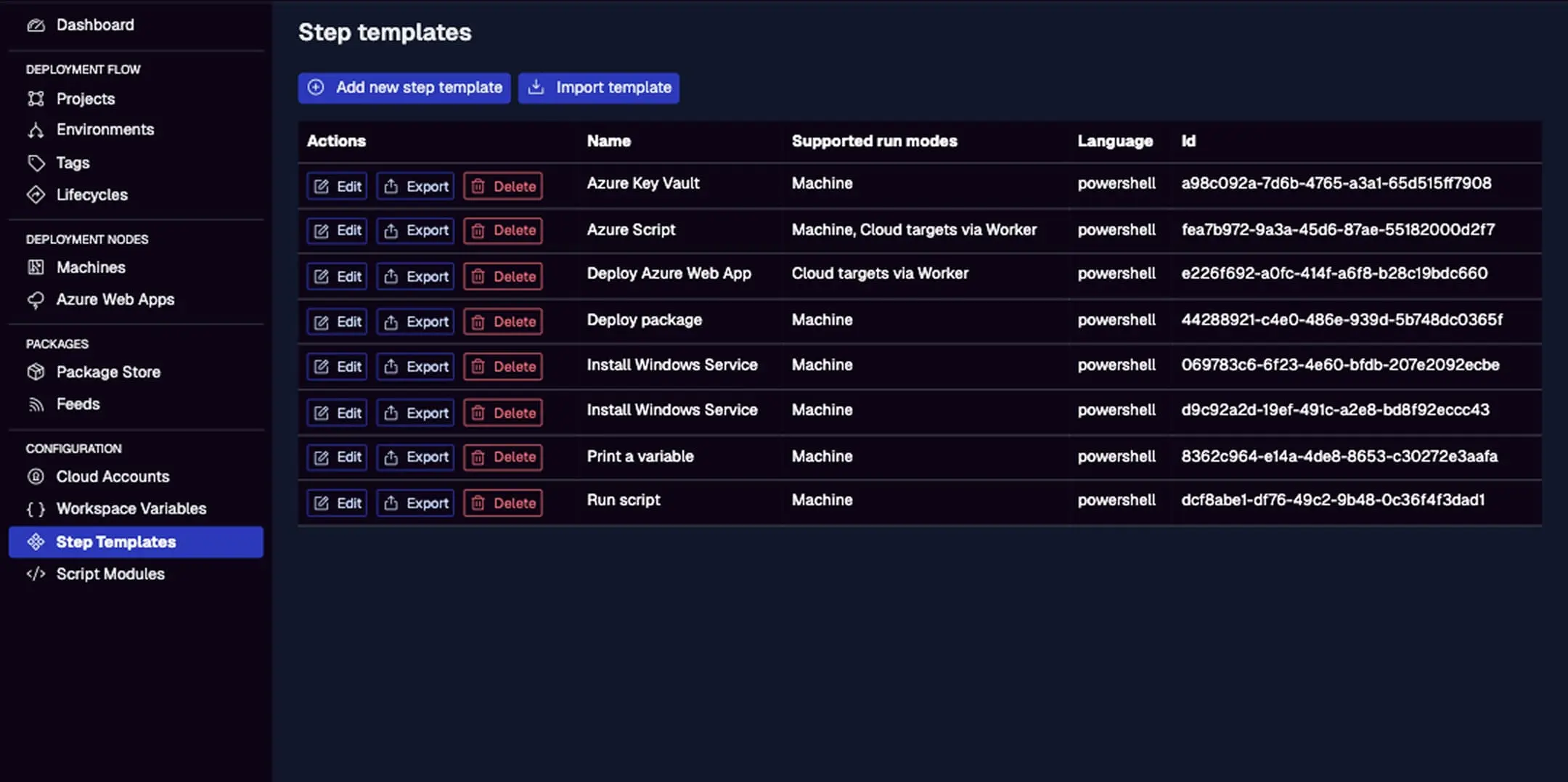
Browse and add reusable templates here, like "Install SSL Certificate" or "Run PowerShell Script."
Using Built-in and Custom Step Templates
Step templates promote reuse across projects—perfect for enterprises standardizing processes.
- Built-in Templates: Include actions like "Azure Key Vault" integration, "Deploy Package," or "Install Windows Service." These come with pre-defined PowerShell logic and UI fields for inputs.
- Custom Templates: Create your own via the Step Templates menu. Define JSON for UI (e.g., dropdowns for params), and embed PowerShell code. Export/import for sharing between workspaces.
- During migrations, convert Bamboo tasks to templates: E.g., a Bamboo "SSH Task" becomes a Jaws "Run Script" template.
Example: Add a "Deploy Package" step, select your package ID/version from the store, and scope to "Production" for env-specific paths.
Code Reuse with Script Modules
For advanced logic, script modules let you share PowerShell functions (.psm1 files) across steps and projects—reducing duplication in enterprises with standardized scripts.
- Upload modules via the Script Modules menu or API.
- Reference in steps:
Import-Module MyUtils; Invoke-MyFunction -Param #{VAR.myVar}. - Benefits for migrations: Extract common Bamboo scripts (e.g., config checks) into modules, then phase out Bamboo dependencies.
- Future-proof: 2025 updates add bash/Python module support for diverse teams.
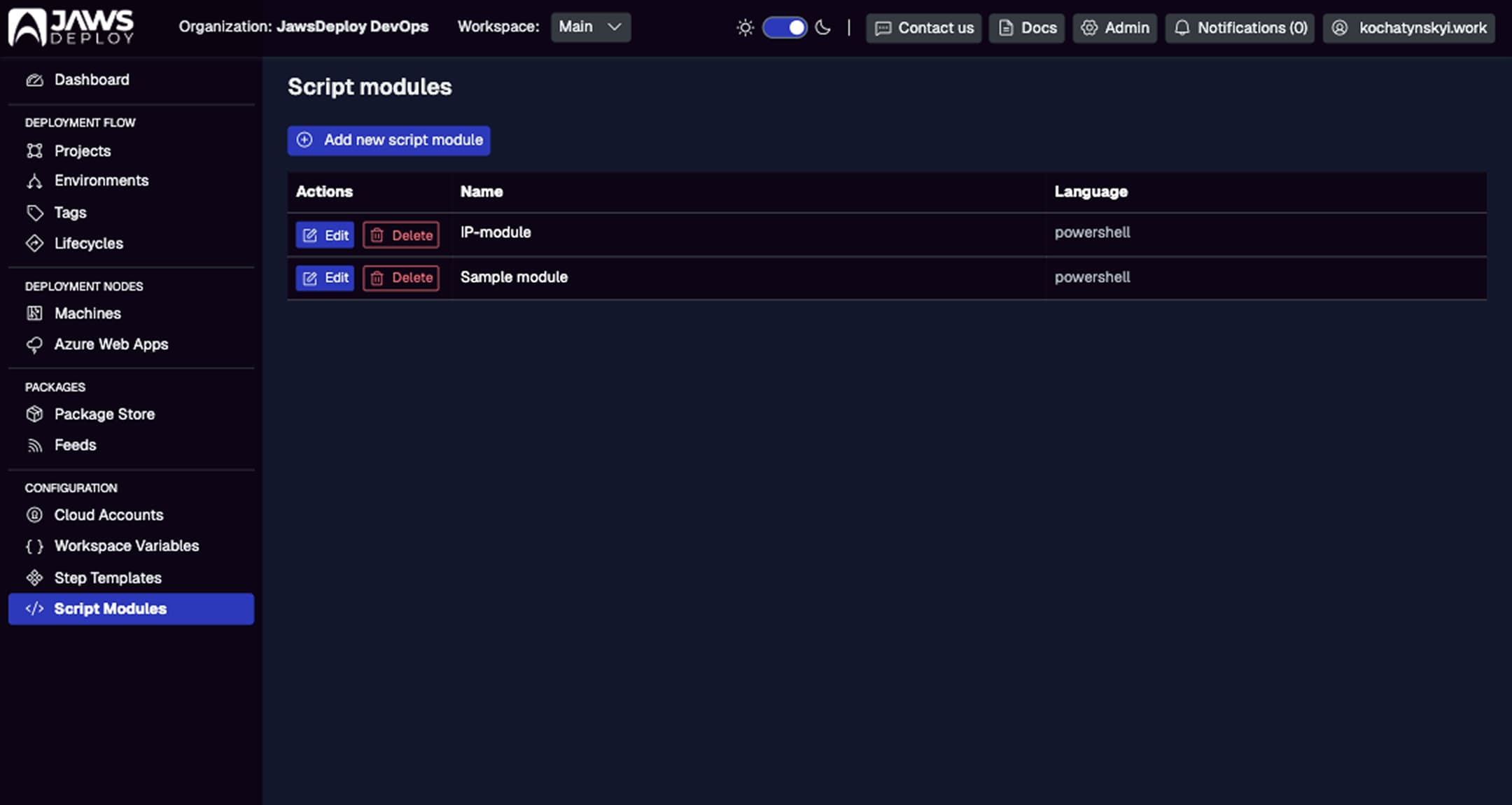
Not shown in provided images, but similar to Step Templates—list modules with edit/export options.
Configuration Transforms
Jaws supports transforming configs during deployment, ensuring env-specific settings without manual edits.
- JSON/XML Transforms: In a "Deploy Package" step, enable transforms—Jaws applies rules like replacing placeholders with variables (e.g.,
#{VAR.connectionString}in appsettings.json). - Scoped Overrides: Use variables for dynamic transforms, scoped to environments (e.g., dev uses local DB, prod uses Azure).
- Enterprise Tip: During Bamboo migrations, map artifact transforms to Jaws steps—test with debug mode (
__debug = true) to verify resolutions.
Best Practices for Enterprise Setups
- Start Small: Migrate a pilot project from Bamboo to Jaws, using API triggers for hybrid runs.
- Audit and Compliance: Jaws' deployment history and logs provide traceability; integrate with Jira for tickets.
- Performance: For large deploys, use tags to target subsets; monitor durations in dashboards.
- Migration Path: Use Jaws' self-hosted Stack for on-prem parity with Bamboo; follow our migration guides (adapt for Bamboo).
Conclusion
Projects and deployment logic in Jaws Deploy empower you to build reliable, reusable workflows with minimal fuss. Whether starting fresh or migrating enterprise setups from tools like Bamboo, the focus on steps, templates, and modules streamlines CD while cutting costs.
Ready to build? Create your first project and explore Variables for deeper customization. For enterprise migrations, check How Jaws Compares to Octopus Deploy or Contact Us for tailored advice.