Step templates in Jaws Deploy are reusable blueprints for common deployment actions, allowing you to standardize and share logic across projects without duplication. They turn frequently used tasks—like installing certificates, deploying packages, or running scripts—into plug-and-play components, complete with customizable UI fields for inputs. This "in action" guide shows how to create, apply, and optimize templates, with real-world examples to demonstrate their power in building efficient workflows.
Templates are especially valuable in enterprise settings, where teams need consistency across multiple projects or during migrations from tools like Bamboo. By encapsulating PowerShell-based logic (with bash/Python support coming in late 2025), templates reduce errors and speed up onboarding. Let's put them into action.
Getting Started with Step Templates
Step templates are managed globally in your workspace but applied per-project. They define the "what" (action) and "how" (code), with a JSON schema for the configuration UI.
Viewing and Adding Templates
- Navigate to the left menu > Step Templates.
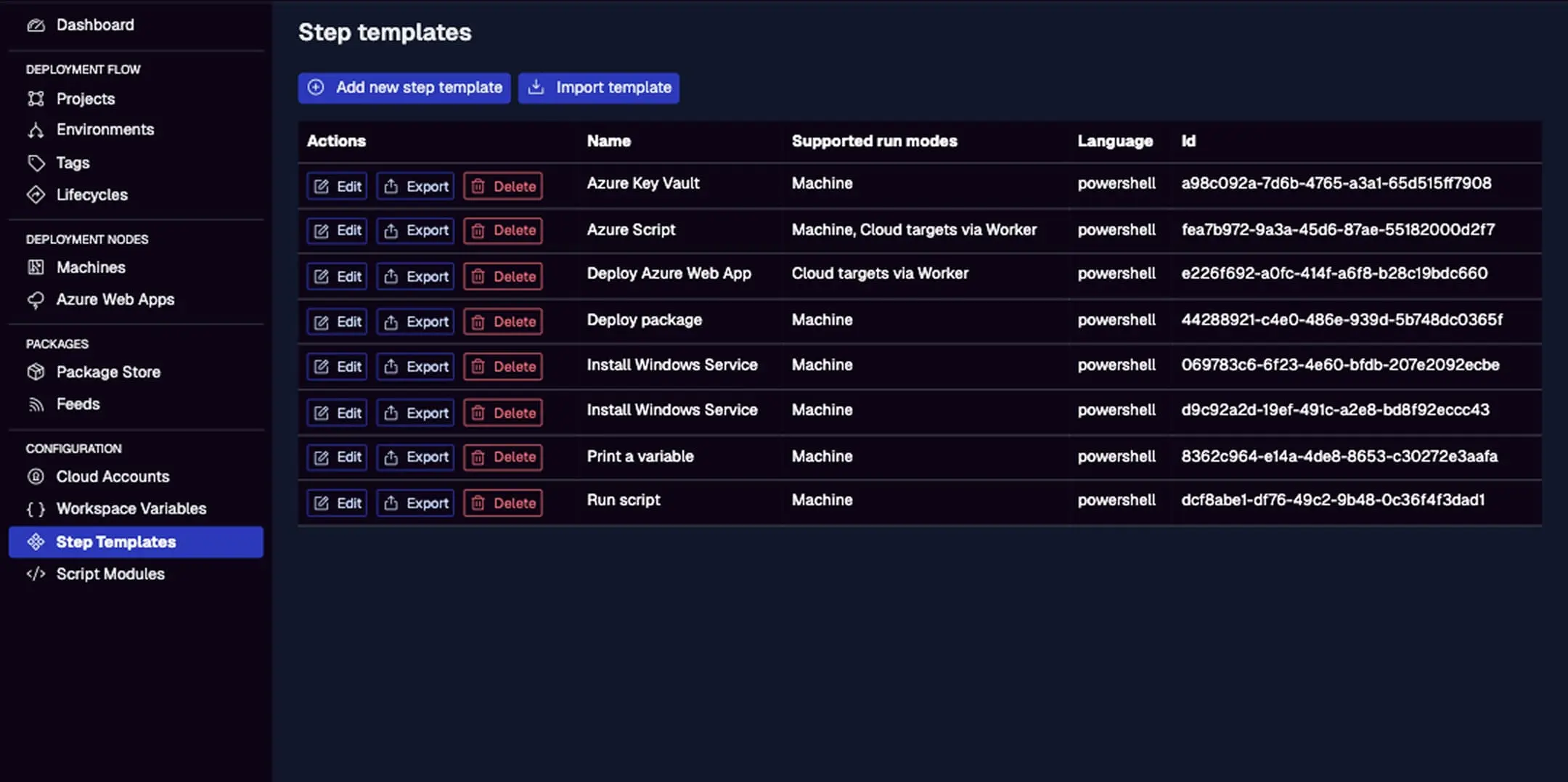
- Browse built-in templates like "Run Script," "Deploy Package," "Install Windows Service," "Azure Key Vault," or "Apply SSL Cert to IIS Binding."
- Add a new one: Click "Add new step template," name it (e.g., "Database Backup"), select run mode (Machine), language (PowerShell), and define the script body.
- Customize UI: Use JSON to add fields (e.g., text inputs for params like backup path).
Built-in templates provide ready-to-use actions; customs extend them for your needs.
This lists templates with names, supported modes, languages, and IDs. Edit or export built-ins as starting points for customs.
Creating a Custom Step Template
Let's create a template for backing up a SQL database—useful in database projects.
- Basic Setup: Name: "SQL Database Backup," Mode: Machine, Language: PowerShell.
- Script Body: Add PowerShell code:
param (
    [string]$ServerName = "#{VAR.ServerName}",
    [string]$DatabaseName = "#{VAR.DatabaseName}",
    [string]$BackupPath = "#{VAR.BackupPath}"
)

# Import SQL module if needed
Import-Module SqlServer -ErrorAction Stop

# Backup command
Backup-SqlDatabase -ServerInstance $ServerName -Database $DatabaseName -BackupFile "$BackupPath\\$DatabaseName.bak"
Write-Host "Backup completed to $BackupPath\\$DatabaseName.bak"
{
  "fields": [
    {"name": "ServerName", "type": "text", "label": "SQL Server Name"},
    {"name": "DatabaseName", "type": "text", "label": "Database Name"},
    {"name": "BackupPath", "type": "text", "label": "Backup Directory"}
  ]
}
In action: This template ensures backups are consistent, with vars for env-specific paths (e.g., Prod backups to secure storage).
For migrations, convert Bamboo script tasks to templates—e.g., a "Deploy WAR" Bamboo task becomes a Jaws template for Tomcat installs.
Applying Step Templates in Projects
Once created, templates become available when adding steps.
- In a project > Steps > Add step > Select your template (e.g., "SQL Database Backup").
- Configure via the generated UI: Enter values or reference vars (e.g., #{VAR.DbServer}).
- Scope/Conditions: Limit to environments (e.g., run only in "Production") or add conditions (e.g., if #{VAR.BackupEnabled} eq true).
Example Workflow: In a "[070] Database" project:
- Step 1: "Azure Key Vault" template to fetch DB creds.
- Step 2: Custom "SQL Database Backup" template.
- Step 3: "Run Script" to notify on completion.
In action: Deploying a release runs the backup on database machines tagged "db-tier," outputting the file path for auditing.
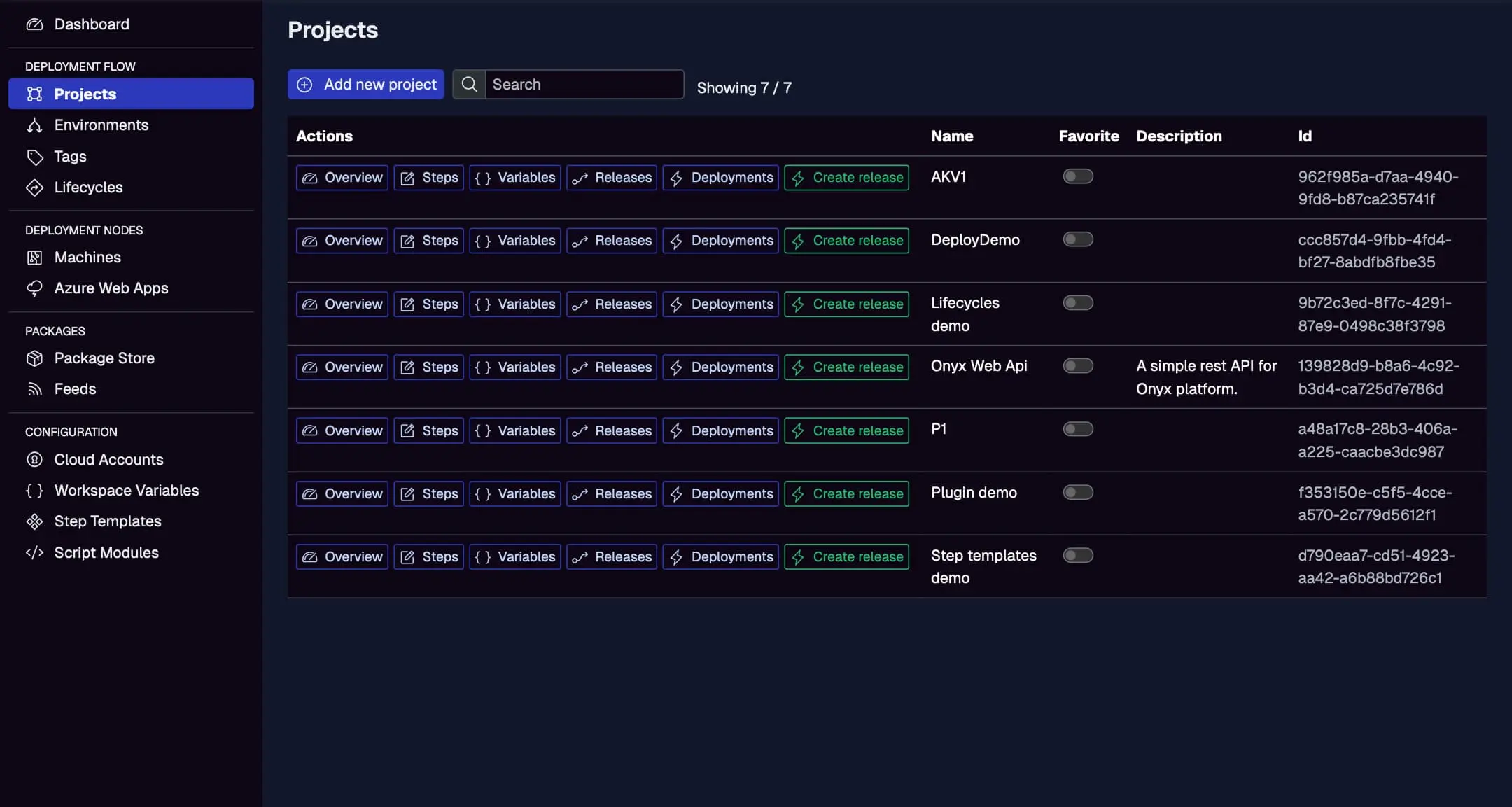
While adding steps isn't shown, this lists projects like [070] Database where templates are applied.
Reusing and Sharing Templates
- Workspace Sharing: Templates are available across projects in the same workspace—ideal for team standards.
- Export/Import: Download as JSON; import to other workspaces or share with teams.
- Versioning: Update templates; existing steps in projects retain the old version until refreshed.
In enterprise action: Create a "Compliance Check" template with scripts for security scans; share via export during Bamboo migrations to standardize post-deploy validations.
Advanced Features
- Output Variables: Templates can set outputs (e.g., Set-JawsOutputValue -Name "BackupFile" -Value $backupPath) for use in later steps.
- Conditions and Scoping: Apply at template level or per-step for dynamic behavior.
- Debugging: Test with
__debug = trueto log resolved params and script outputs. - Future Enhancements: 2025 adds bash/Python templates for non-PowerShell logic.
Best Practices
- Standardize: Build templates for common tasks to enforce best practices.
- Parametrize: Use UI fields for flexibility; default to vars for automation.
- Version Control: Name templates with versions (e.g., "Backup v1.1") if updating logic.
- Migration from Bamboo: Extract Bamboo task scripts into templates; automate via API for hybrid deploys.
- Performance: Keep scripts efficient; monitor run times in deployments.
- Security: Avoid hardcoding secrets; use scoped vars.
Conclusion
Step templates in action transform repetitive tasks into efficient, shareable components, accelerating development and easing enterprise migrations from tools like Bamboo.
For hands-on, try Code Reuse with Script Modules. Create your first template—go to Step Templates! New to Jaws? Start with Getting Started.