CircleCI is a cloud-based CI/CD platform that automates building, testing, and deploying code with YAML-configured pipelines. It's efficient for continuous integration (CI) but can benefit from a dedicated tool for handling complex deployments. Jaws Deploy integrates with CircleCI to manage the continuous deployment (CD) phase, overseeing releases, environment progressions via lifecycles, variable management, and deployment monitoring.
In this setup, CircleCI handles builds and artifact creation (e.g., .zip packages), while Jaws Deploy manages release creation and deployment. Use Jaws' REST API or PowerShell SDK for automation—no native CircleCI orb exists; incorporate scripts in your config.yml.
This guide covers prerequisites, setup, an example pipeline, and tips for success.
Why Integrate CircleCI with Jaws Deploy?
- Complementary Strengths: CircleCI shines in CI workflows; Jaws excels in CD with features like scoped variables, tags for targeting, and automated lifecycles.
- Seamless Automation: Trigger Jaws releases post-build, reducing manual effort and errors.
- Visibility Boost: Gain access to Jaws' dashboards for trends, logs, and history, extending CircleCI's job artifacts.
- Flexibility: Supports CircleCI's orbs and executors, combined with Jaws' security for API-driven deploys.
This integration suits web apps, .NET projects, or containerized services where CircleCI builds artifacts and Jaws deploys to on-prem or cloud targets like Azure Web Apps.
Prerequisites
- A Jaws Deploy account (sign up at https://app.jawsdeploy.net/signup).
- A CircleCI project connected to your repo (GitHub/Bitbucket).
- A Jaws project with steps, environments (e.g., Staging, Production), and optionally a package store.
- CircleCI context or project variables for secrets.
- Executors with curl (for REST) or PowerShell (for SDK; use Windows executors or install pwsh on Linux).
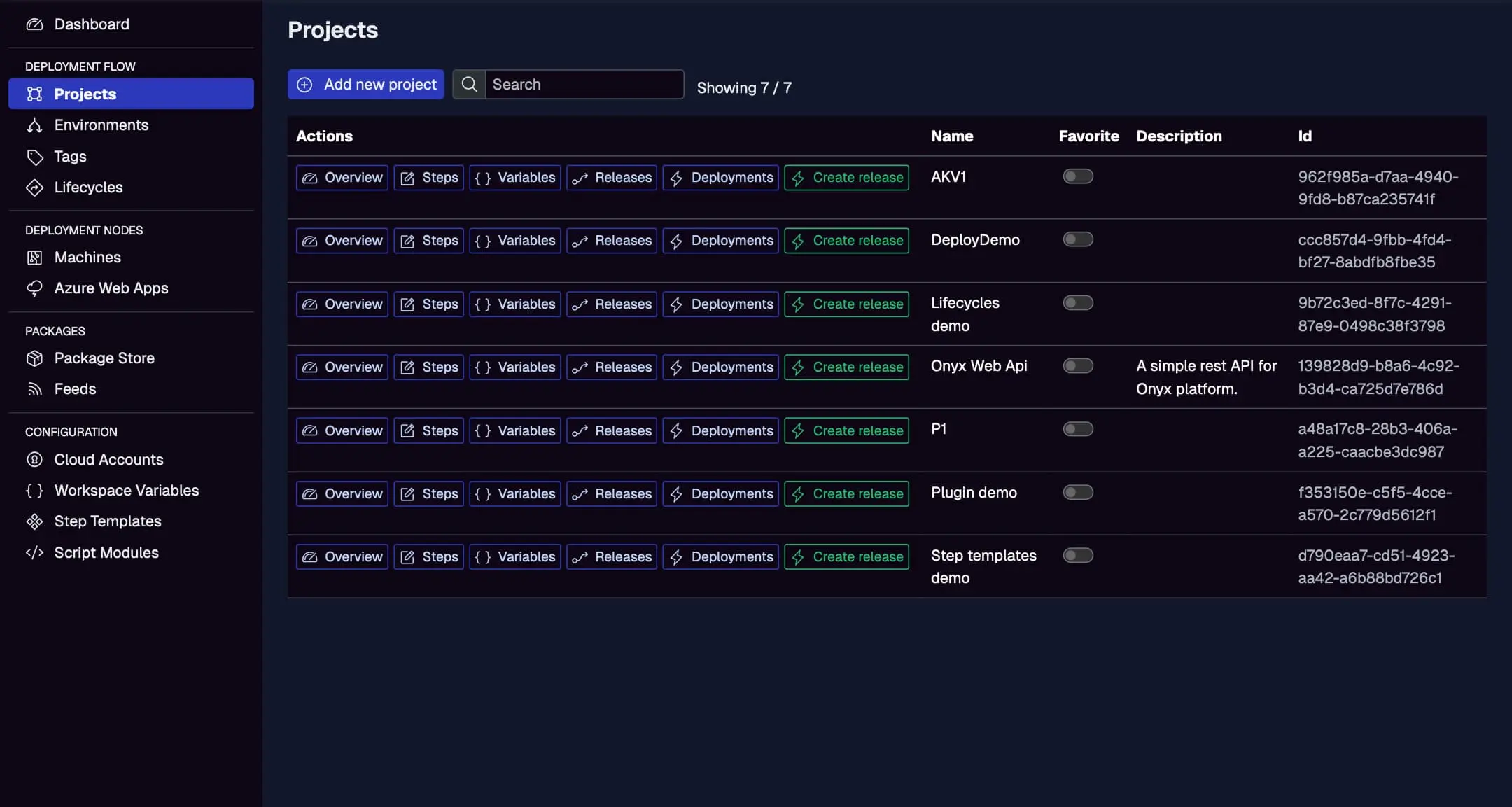
Configure your Jaws project here before starting.
Step 1: Create a Service Account in Jaws Deploy
For secure pipeline access:
- In Jaws, go to Settings > Service Accounts.
- Create an account (e.g., "CircleCIDeployer") with permissions for release creation and deployment on specific projects/workspaces.
- Copy the service account ID and API key.
In CircleCI:
- Go to Organization Settings > Contexts (or project settings for variables).
- Create/add to a context (e.g., "jaws-deploy") with:
JAWS_API_LOGIN= service account ID.JAWS_API_PASSWORD= API key (as secure env vars).
Reference this context in your config.yml.
See the Service Accounts and Automation Guide for details.
Step 2: Choose Your Integration Method
- REST API: Use
curlin bash commands for HTTP calls. Simple for Linux executors. - PowerShell SDK: Run scripts to import the SDK and use commands like
Invoke-ReleaseAndDeployProject. Requires PowerShell on the executor (pre-installed on Windows; add setup on others).
The example uses the SDK, with REST notes.
Step 4: Set Up Your CircleCI Pipeline
Create a .circleci/config.yml in your repo. This example builds a .NET app, packages it, uploads to Jaws, and deploys.
Example config.yml
version: 2.1

orbs:
  win: circleci/windows@5.0.0  # For PowerShell on Windows executor

jobs:
  build:
    executor: win/default  # Or linux for bash/curl
    steps:
      - checkout
      - run:
          name: Build and Package
          command: |
            dotnet build --configuration Release
            dotnet publish -c Release -o out
            Compress-Archive -Path out/* -DestinationPath app.zip
      - run:
          name: Upload Package to Jaws (REST)
          command: |
            $auth = [Convert]::ToBase64String([Text.Encoding]::ASCII.GetBytes("$env:JAWS_API_LOGIN:$env:JAWS_API_PASSWORD"))
            curl.exe -X POST "<https://app.jawsdeploy.net/api/packagestore/package>" `
              -H "Authorization: Basic $auth" `
              -F "file=@app.zip" `
              -F "packageId=my-app" `
              -F "version=$CIRCLE_BUILD_NUM.0.0"  # Use build number for SemVer
      - persist_to_workspace:
          root: .
          paths:
            - app.zip  # Optional for archiving

  deploy:
    executor: win/default
    steps:
      - attach_workspace:
          at: .
      - run:
          name: Deploy via PowerShell SDK
          command: |
            Invoke-WebRequest -Uri "<https://github.com/JawsDeploy/powershell-sdk/raw/main/JawsDeploySdk.psm1>" -OutFile "JawsDeploySdk.psm1"
            Import-Module ./JawsDeploySdk.psm1

            $env:JAWS_API_LOGIN = $env:JAWS_API_LOGIN
            $env:JAWS_API_PASSWORD = $env:JAWS_API_PASSWORD

            $projectId = "your-project-id"  # From Jaws Projects page
            $version = "$env:CIRCLE_BUILD_NUM.0.0"
            $response = Invoke-ReleaseAndDeployProject -projectId $projectId -version $version -environmentName "Staging"
            Write-Output $response

workflows:
  build-deploy:
    jobs:
      - build
      - deploy:
          requires:
            - build
          context:
            - jaws-deploy  # Your context with creds
Key Explanations
- Build Job: Builds, publishes, zips, and uploads to Jaws' package store using curl in PowerShell with Basic Auth.
- Deploy Job: Imports the SDK, sets creds, and calls
Invoke-ReleaseAndDeployProjectfor release and deployment to Staging. - Versioning: Uses CircleCI's
$CIRCLE_BUILD_NUMfor SemVer. - Executor: Windows for native PowerShell; for Linux, use bash and pwsh installation steps (e.g.,
apt install powershell).
For pure REST on Linux:Replace deploy command with bash curl:
run:
  name: Create Release (REST)
  shell: bash
  command: |
    auth=$(echo -n $JAWS_API_LOGIN:$JAWS_API_PASSWORD | base64)
    curl -X POST "<https://app.jawsdeploy.net/api/release>" \\
      -H "Authorization: Basic $auth" \\
      -H "Content-Type: application/json" \\
      -d "{\\"projectId\\": \\"your-project-id\\", \\"version\\": \\"$CIRCLE_BUILD_NUM.0.0\\", \\"packageVersions\\": {\\"my-app\\": \\"$CIRCLE_BUILD_NUM.0.0\\"}}"
    # Add curl for /api/release/deploy
Check the API Reference for endpoints.
Step 4: Test and Monitor
- Push changes to trigger the workflow.
- View job logs in CircleCI.
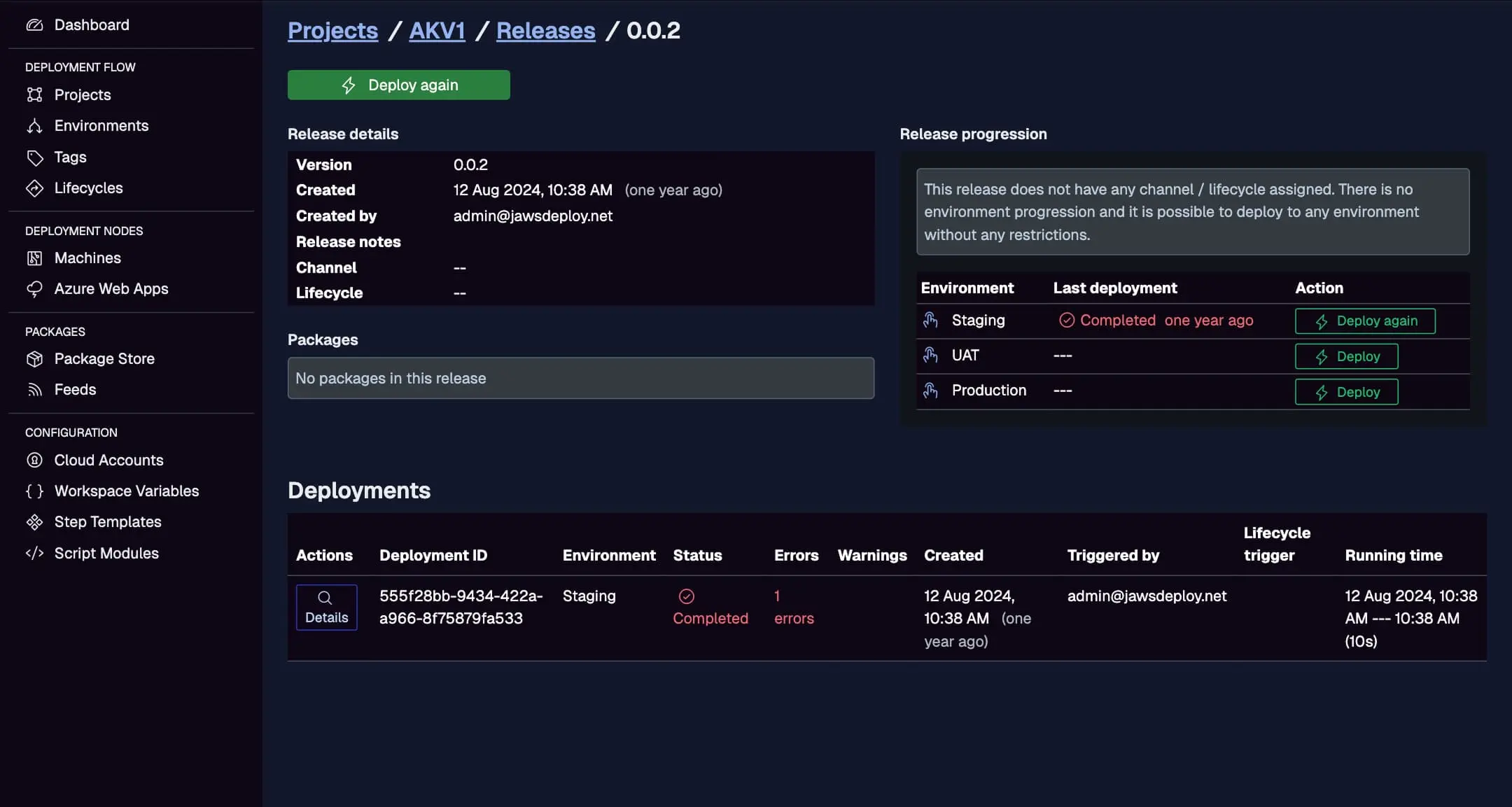
- In Jaws, check the Deployments tab for progress.
Monitor CircleCI-triggered deploys here, with statuses and durations.
For debugging, set a __debug variable to true in your Jaws project for detailed logs.
Best Practices
- Secure Vars: Use contexts for secrets; restrict to branches.
- Conditional Workflows: Add filters (e.g.,
filters: branches: only: main) for Production. - Artifacts: Store in CircleCI for backups; align versions with Jaws.
- Error Handling: Use
set -ein bash or try-catch in PowerShell. - Executors: Match to your stack (e.g., machine executor for custom images).
- Orbs: Combine with other orbs for enhanced builds.
Troubleshooting Common Issues
- Auth Failures: Ensure context vars are linked and encoded correctly.
- Package Errors: Verify paths and versions.
- SDK Issues: Confirm executor has PowerShell; test downloads.
- Timeouts: Optimize steps or use faster executors.
- Logs: Use Jaws' UI for in-depth analysis.
Refer to CircleCI docs or our API Reference.
Conclusion
Integrating Jaws Deploy with CircleCI streamlines your CI/CD, letting CircleCI build efficiently while Jaws deploys reliably.
For more, see the CI/CD Integration Guide. Set up your config now! New to Jaws? Start with Getting Started.