Machines in Jaws Deploy are physical or virtual servers (on-prem or cloud VMs) that serve as deployment targets, running the lightweight Jaws Deploy Agent to execute steps from your projects. They represent the "where" of your deployments—handling tasks like package extraction, script running, and service installations. Managing machines involves installing the agent, adding them to your workspace, configuring environments/tags, monitoring status, and handling updates—essential for reliable, scalable CD.
Unlike agentless cloud targets (e.g., Azure Web Apps), machines offer full customization via the agent, supporting Windows and Linux. This is particularly useful in enterprise setups migrating from tools like Bamboo, where you can repurpose existing agents for hybrid operations. As of September 22, 2025, agents now include improved auto-update logic and enhanced logging for containerized scripts.
This article covers setup, management, monitoring, and best practices.
What Are Machines?
Machines are endpoints where deployments occur:
- Agent-Based: The Jaws Deploy Agent (a background service) polls the server, executes steps, and reports back.
- Supported OS: Windows (as a service) and Linux (via systemd).
- Capabilities: Run PowerShell scripts (default), with bash/Python support rolling out later in 2025; handle packages, configs, and custom logic.
- Assignment: Link to environments (e.g., "Production") and tags (e.g., "region-us") for targeted deploys.
In contrast to cloud targets, machines are ideal for custom or legacy infra. For migrations, install agents on Bamboo-managed servers to test parallel deploys.
Installing the Jaws Deploy Agent
The agent is required on every machine:
- Access the UI: In your workspace, go to Machines > Add new machine.
- Download Script: Select OS (Windows/Linux) and download the
install_agentscript. - Run the Script:
- Windows: Open elevated PowerShell; run the script. Installs to
C:\\\\Program Files\\\\JawsDeploy\\\\Agentas "Jaws Deploy Agent" service. - Linux: Run with admin privileges (sudo); installs to
/opt/JawsDeploy/Agentas a systemd service.
- Windows: Open elevated PowerShell; run the script. Installs to
- Handshake: The agent starts and reports to Jaws; accept in the "Pending handshakes" section, optionally assigning an environment.
No user interaction during install; agent auto-starts and connects.
For enterprise batch installs, script deployments via tools like Ansible; during Bamboo migrations, install on existing agents for dual-running.
See the Installing Jaws Deploy Agent guide for details.
Adding and Configuring Machines
Once installed:
- Accept Handshake: In Machines, under Pending, click "Accept" and set environment/tags.
- Edit Details: Click Edit to rename, reassign environments, or add tags (e.g., "app-web" for scoping).
- Authentication: Agents use built-in auth; configure proxies if needed (see Proxy Setup).
- Tagging: Add custom tags for grouping (e.g., "os-windows," "tier-db")—key for targeted deploys without env proliferation.
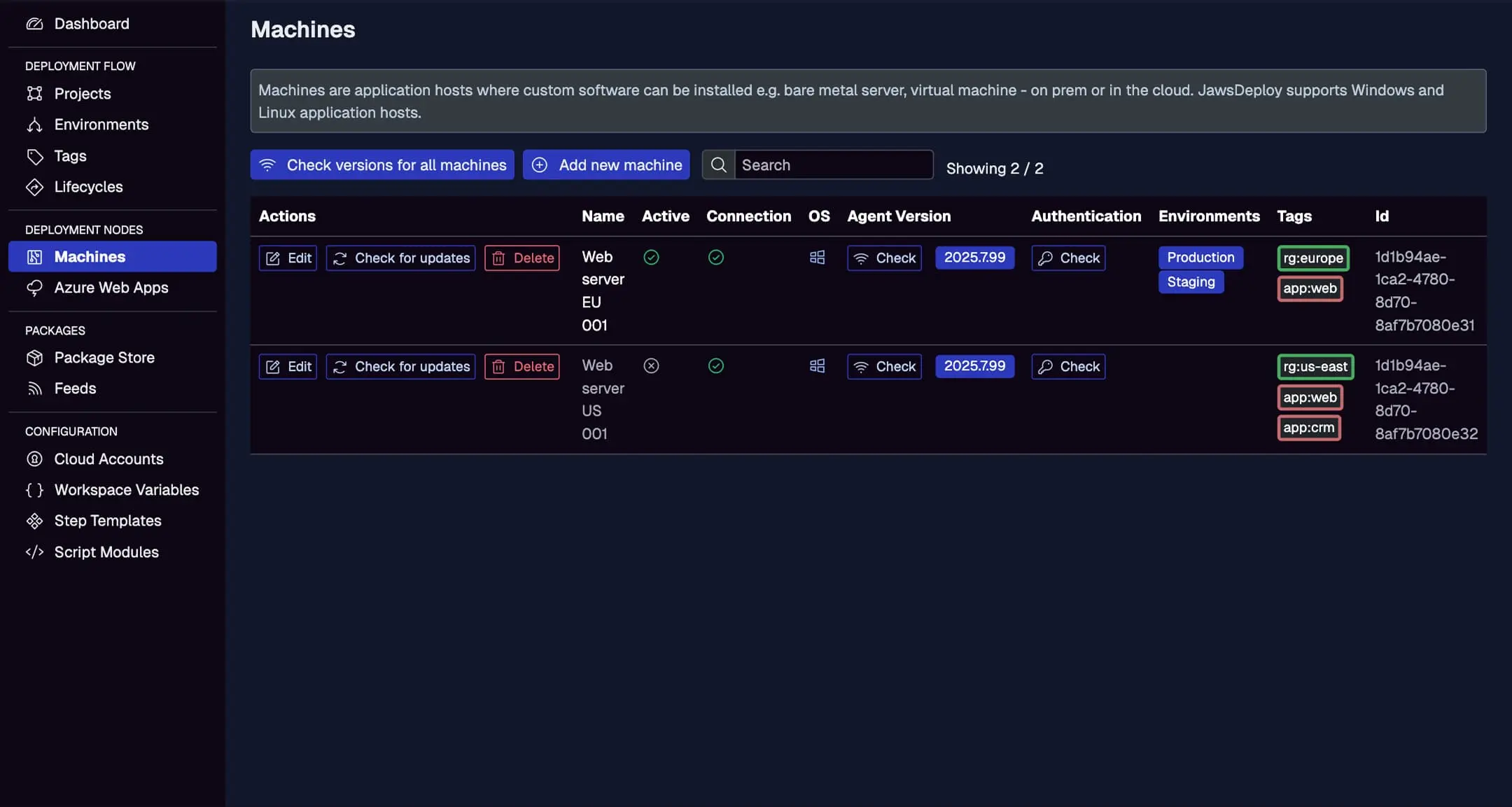
Machines appear in the list with status indicators.
This displays machines with active/connection status, OS, agent version, environments, tags, and actions like Edit, Check for updates, Delete.
Monitoring and Maintaining Machines
- Status Checks: Green for active/connected; red for issues. Use "Check for updates" to verify agent version (auto-updates supported).
- Activity Logs: View last deployments, errors in dashboards.
- Updates: Agents self-update; manual via UI button or script re-run.
- Uninstallation: Stop service, remove files (Windows: Uninstall via Control Panel; Linux: systemd remove).
- Troubleshooting: Reject unrecognized handshakes; check agent logs (in install dir) for connection errors.
For enterprises, monitor via dashboards; integrate with tools like Jira for alerts on offline machines.
Integrating with Deployments
- Targeting: In steps, select via environments/tags—e.g., deploy only to "tier-web" machines.
- Parallelism: Run steps across multiple machines simultaneously.
- Hybrid Use: Combine with cloud targets, e.g., deploy app to Azure, scripts to machines.
- Migration Tip: From Bamboo, add machines matching existing agents; test deploys in parallel.
Best Practices
- Security: Use least-privilege; agents pull work—firewall outbound to Jaws only.
- Scalability: Tag for dynamic groups; auto-scale VMs with agent pre-installed.
- Enterprise Migration: Install on Bamboo servers; gradually shift logic to Jaws for reduced maintenance.
- Performance: Monitor connection times; update agents regularly.
- Backup: Snapshot VMs; agent config is minimal.
- Debugging: Enable
__debugfor agent-side var logs.
Conclusion
Managing machines in Jaws Deploy provides a robust foundation for agent-based deployments, simplifying enterprise migrations from tools like Bamboo with easy setup and monitoring.
For more, see Installing Jaws Deploy Agent or Tagging in Jaws Deploy. Add your first machine—head to the Machines page! New to Jaws? Start with Getting Started.