Executing a deployment in Jaws Deploy is the process of applying a release to one or more environments, running the defined steps on targets (machines or cloud apps), and monitoring the outcome. It's where your planning pays off: Releases are pushed live, configurations are transformed, scripts execute, and your app updates seamlessly. Deployments can be manual for controlled rollouts or automated via lifecycles and API triggers for CI/CD efficiency.
This step ensures reliability with features like live previews, parallel execution, and detailed logging—crucial for minimizing downtime in production. For enterprise teams migrating from tools like Bamboo, deployments in Jaws mirror plan executions but with enhanced visibility and fewer custom scripts. As of September 2025, deployments now include improved container handling in logs for better debugging in Kubernetes-like setups.
This article covers how to execute deployments, monitor progress, handle errors, and automate for scale.
Preparing for Deployment
Before executing:
- Have a Release Ready: Create one manually or via API (see Creating Releases).
- Check Targets: Ensure machines are online (green status) and cloud targets (e.g., Azure Web Apps) are connected.
- Review Lifecycles: Confirm progression rules—e.g., auto-deploy to Staging, manual for Production.
- Scope and Variables: Verify variables resolve correctly (test with
__debug = truefor previews).
In migrations, align Bamboo artifacts with Jaws packages; test a dry-run deployment to validate.
Executing a Deployment Manually
For targeted or testing deploys:
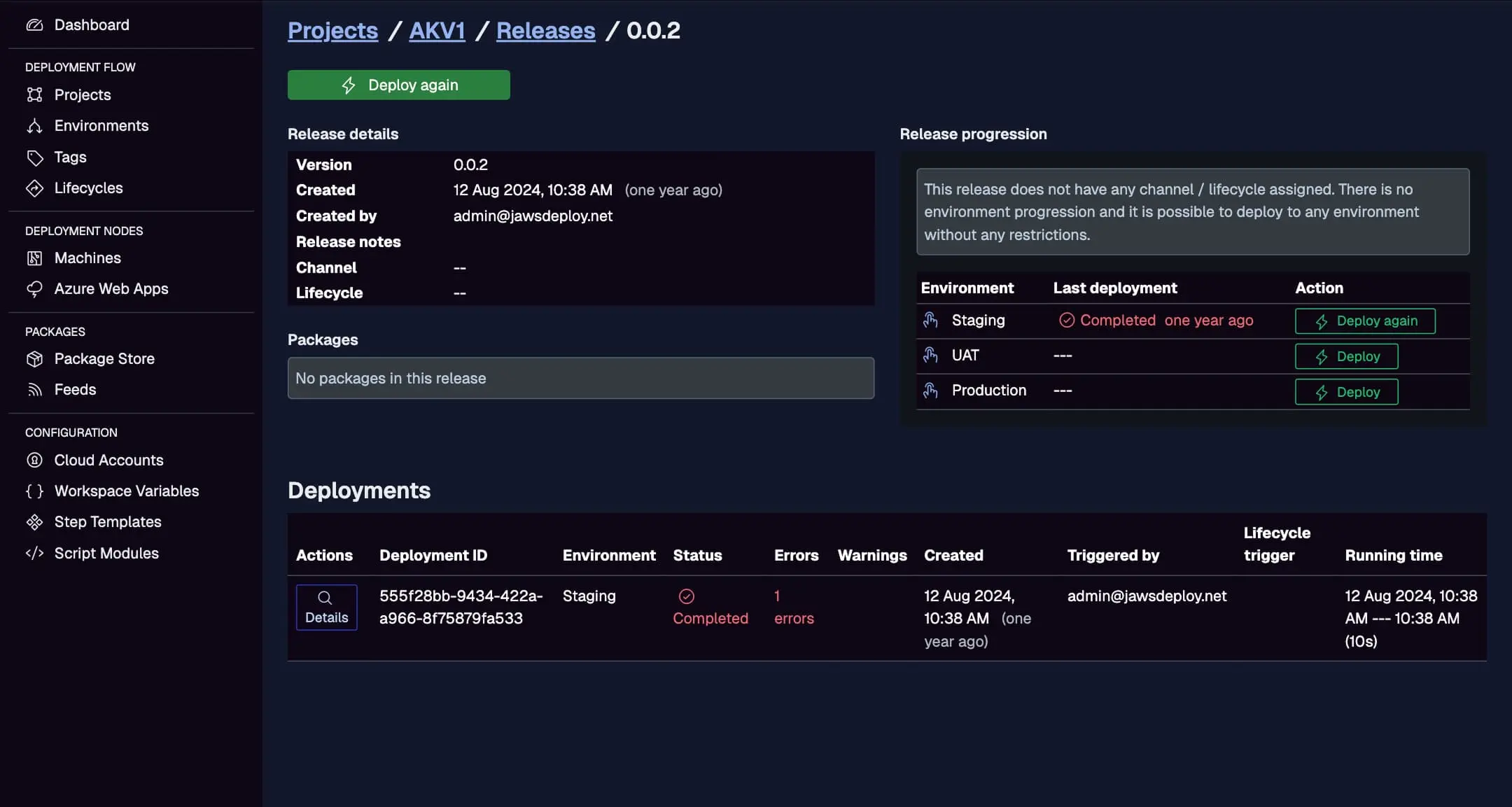
- From the Release Page: Select a release > Click "Deploy" (or "Deploy again" for redeploys).
- Choose Environments: Select one or more (e.g., "Staging"); Jaws shows eligible based on lifecycle.
- Configure Options:
- Redownload Packages: Force fresh pulls from the store (useful if artifacts updated).
- Exclude Steps: Skip specific steps (e.g., for partial deploys).
- Parallelism: Set how many targets run simultaneously (default: all).
- Guided Failure: Enable for manual intervention on errors.
- Preview and Start: Review the plan (targets, steps, vars); confirm to execute.
Deployment starts immediately, with live updates in the UI.
This view shows the deploy button, options, and running deployments with statuses, durations, and triggers (e.g., "TeamCity").
Automating Deployments
For production efficiency:
- Lifecycles: Set auto-promotion rules (e.g., after successful Staging, deploy to Prod). Trigger via API post-CI.
- API Execution: Use
POST /api/release/deploywith release ID and environments.Example Body:
{
  "releaseId": "def456",
  "environments": ["Production"],
  "redownloadPackages": true
}
- SDK: PowerShell's
Invoke-ReleaseAndDeployProjectcombines creation and deploy. - CI/CD Triggers: Integrate with tools like Bamboo—post-build, call API to execute (see CI/CD Integration Guide).
In enterprise setups, automate for zero-touch: Use webhooks or scheduled deploys; during Bamboo migrations, run parallel executions to compare outcomes.
Monitoring and Managing Deployments
- Live Progress: Watch in the Deployments tab—grouped by steps/targets, with real-time logs and statuses (Completed, Failed, Running).
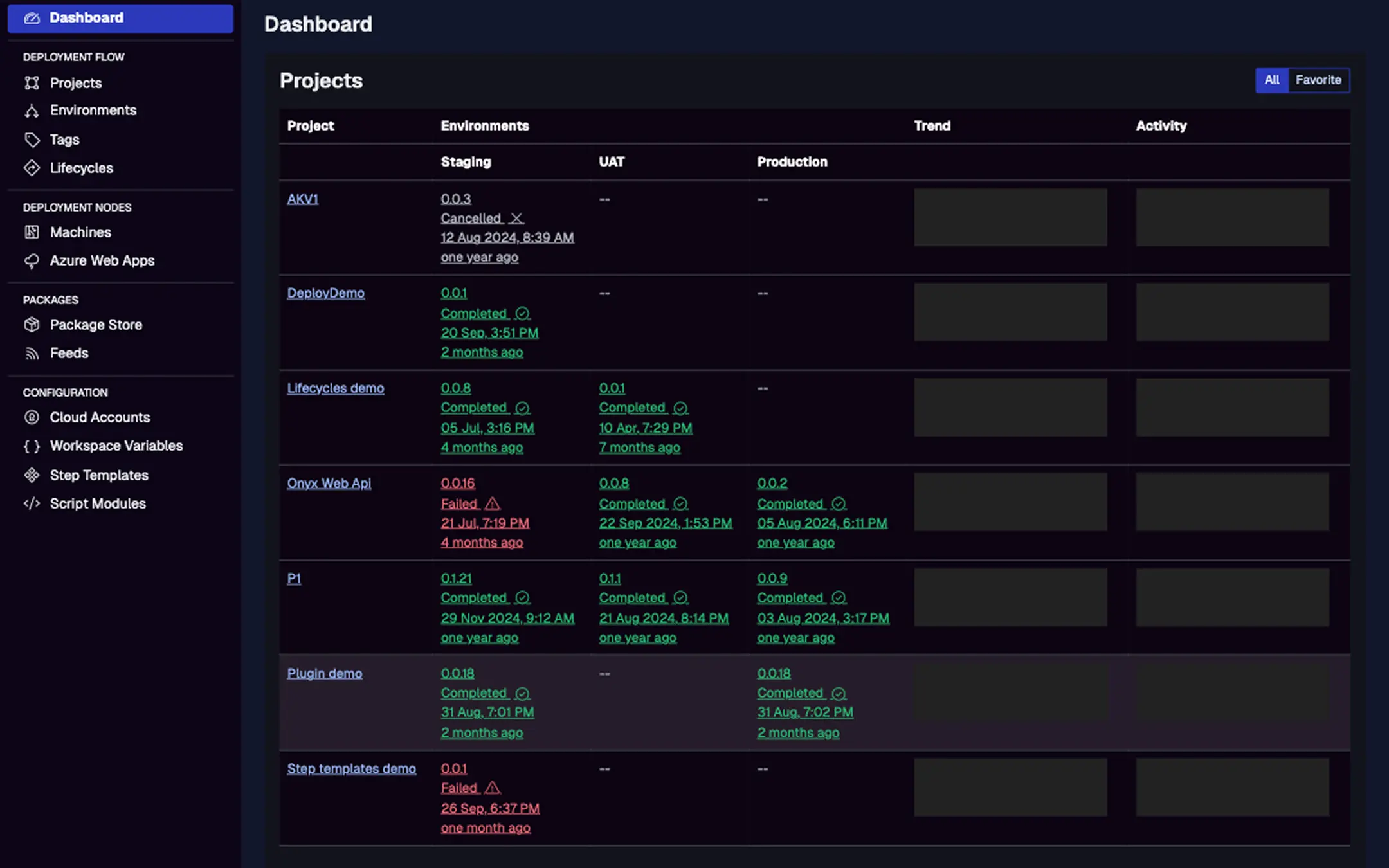
- History and Trends: View past deploys with durations, errors, warnings; dashboards show activity graphs for bottlenecks.
- Notifications: Set up alerts (email/Slack via integrations) for failures.
- Intervention: Pause/resume, skip steps, or retry failed targets mid-deploy.
- Auditing: Every deploy logs who triggered it, when, and changes—key for compliance.
For container workflows, logs now highlight image pulls/tags; enable verbose with __debug.
See deployment slots, statuses, errors/warnings, and trends across projects/environments.
Handling Errors and Troubleshooting
- Common Issues: Package not found (check store), connection failures (verify targets), variable mismatches (use debug).
- Debug Mode: Set
__debug = truein project variables—logs all resolved values and contexts. - Rollback: Redeploy a previous release; use lifecycles for automated fallbacks.
- Enterprise Tip: In migrations, compare Bamboo logs with Jaws; use output variables to capture diagnostics.
If stuck, check machine/agent logs or Azure portal for cloud targets.
Best Practices
- Start Small: Manual deploys for dev; automate for prod.
- Zero-Downtime: Use cloud slots or blue-green with tags.
- Security: Scope deploys to roles; audit triggers.
- Performance: Parallelize where safe; monitor trends to optimize steps.
- Migration Strategy: From Bamboo, script API calls in plans; gradually deprecate Bamboo deploys.
- Scale: For enterprises, use tags for canary deploys; integrate with monitoring tools.
Conclusion
Executing deployments in Jaws Deploy turns your plans into action, with robust monitoring and automation for reliable outcomes—streamlining enterprise migrations from tools like Bamboo.
Learn more in Managing Release Progression with Lifecycles or Variables. Execute your first deploy now! For help, see Contact Us.